
5 tricks for searching for information by full name on Google
Like other OSINT platforms, Noimosiny includes services for searching by email address, username and phone number. But often the only starting point for an investigation is a person’s full name, or their surname and initials. And if the person isn’t called Michael Smith or Maria Garcia (in other words, their full name is fairly uncommon), it makes sense to start gathering information with a simple Google search.
Unfortunately, the days when Google showed hundreds of pages of search results are long gone. Back then, if you had plenty of time, you could actually look through every mention of a person online. In 2026, if 200–300 links appear in the results, that’s already a stroke of luck. So, you need to use different combinations of keywords and advanced search operators to bring the pages and documents most useful to an investigation to the top of the search results.
There are many such combinations. OSINT specialists sometimes call them “Person Info Google Dorks”. In this article, we’ll cover some of what we consider the most useful tricks for gathering information about someone by their full name on Google.
Search for documents containing telephone numbers
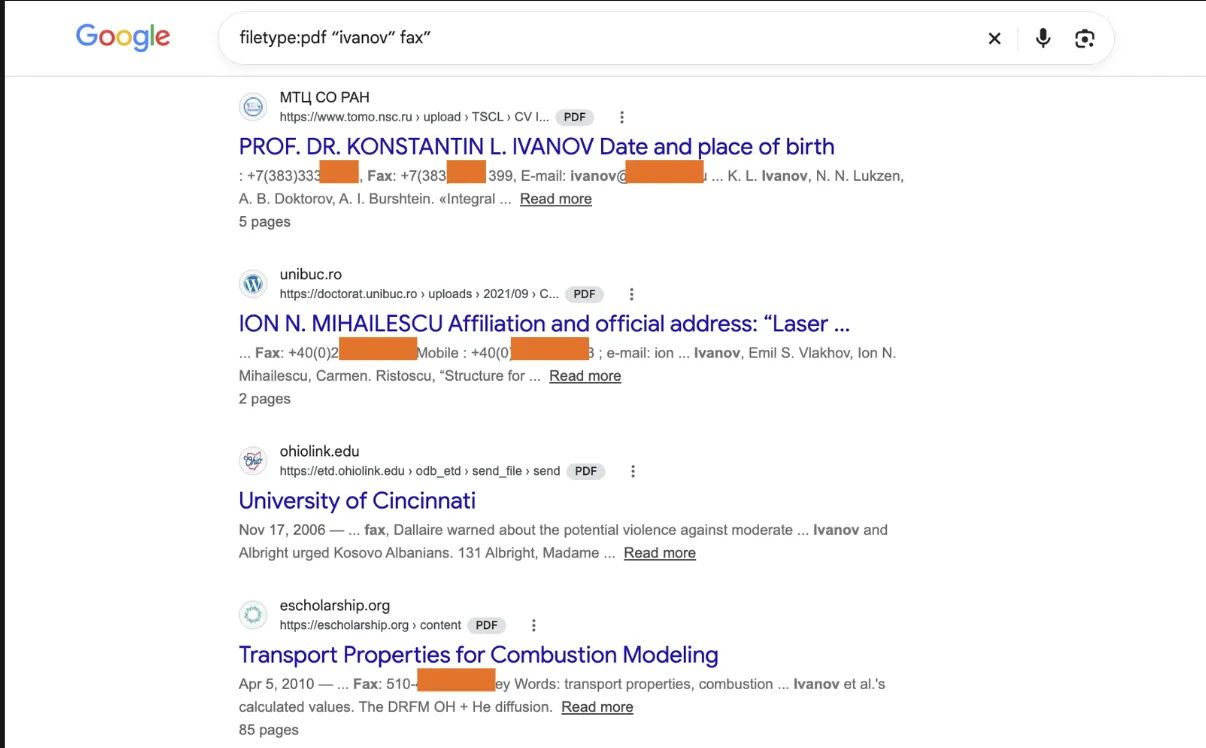
It’s a real stroke of luck if you can find files from someone’s workplace or place of study that contain contact information. I prefer to start searching for a phone number, as an email address is often somewhere nearby. You can search PDF and MS Word (.doc, .docx) documents using the “filetype:” operator and keywords that often appear next to phone numbers in documents.
filetype:pdf “ivanov” “phone” filetype:pdf “ivanov” "fax” filetype:docx “ivanov” “mobile” filetype:pdf “ivanov” “contact me”
If you know the country or even the city of the person you’re gathering information about, try adding those digits to the query in different combinations.
filetype:pdf “ivanov” “+40(0)” filetype:pdf “ivanov” “+40 0”
Search for documents containing emails
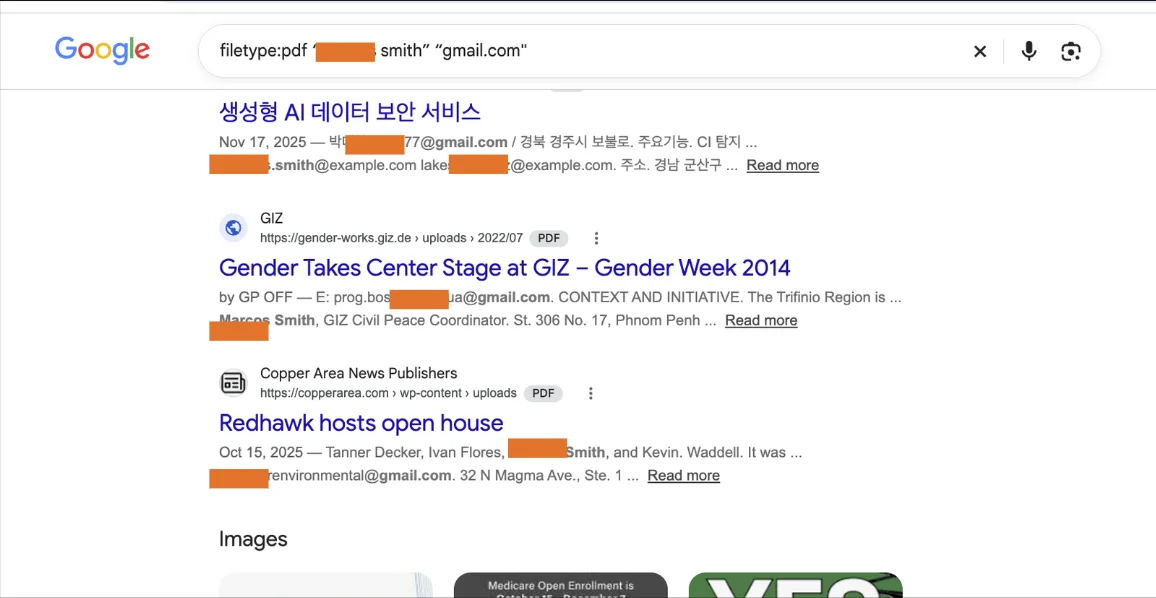
For this task, the “filetype:” operator will come in handy again, and you can use the domains of popular email services as keywords:
filetype:pdf “marcos smith” “gmail.com” filetype:pdf “marcos smith” “yahoo.com”
If you know which country the person is from, find out which email services are popular there and try using them. You can also add the keywords “Email:” and the “contact me” mentioned above.
Searching for documents containing physical addresses
A person’s work address is often of little value to an investigation, but… A phone number and email address may often be listed alongside it (and may not have been found in the previous two steps due to the way Google’s algorithms work). In that case, you could try searches such as:
filetype:pdf “ivanov” “street address” filetype:pdf “ivanov” “Full address” filetype:pdf “ivanov” “address”
If you know the person’s country or city, try using them as additional keywords.
Search for confidential documents accidentally made publicly accessible
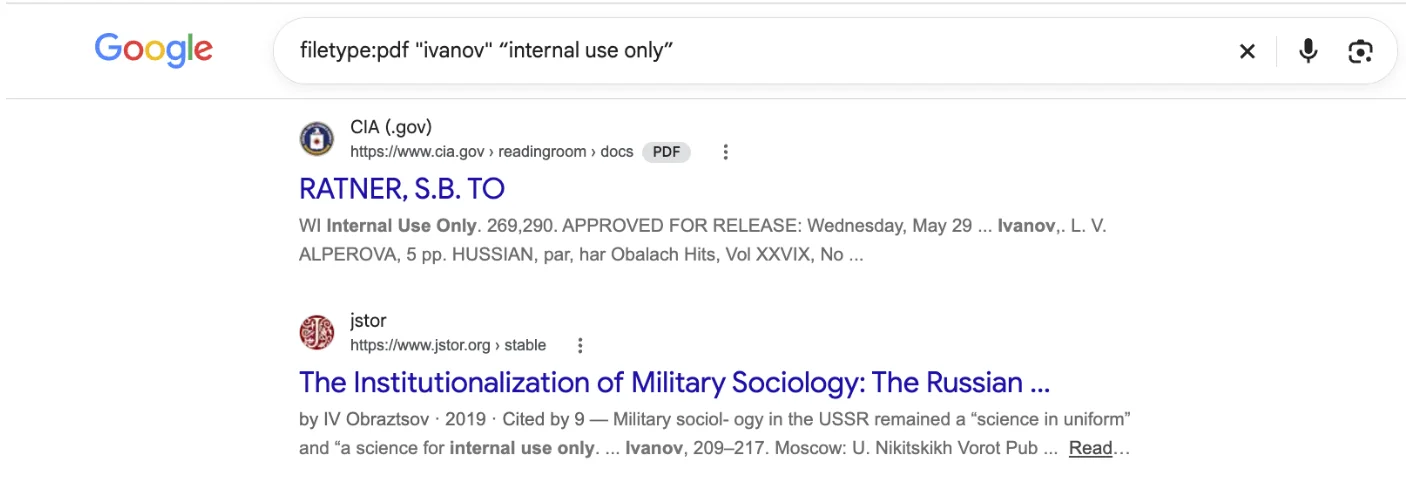
To be honest, keywords for searching for confidential documents very rarely help when searching for information about a specific person; they’re more often useful for searching company domains and subdomains. Nevertheless, they’re worth trying:
“condidential” “internal use only” “for official use only” “strictly Confidential” “restricted”
Search for Google Docs containing contact details that have accidentally become publicly accessible
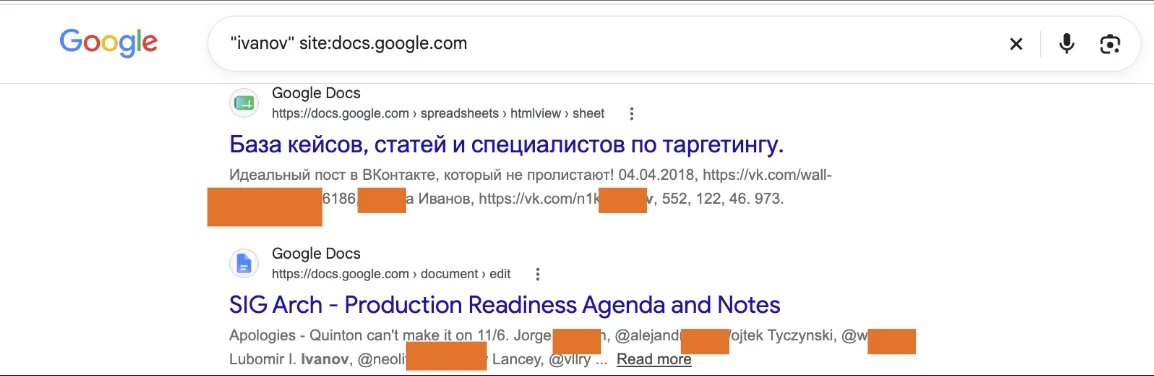
The “site:docs.google.com” query lets you find numerous files that people have made completely public by accident. Many people simply don’t know that documents like these, whose access isn’t restricted to a specific group, are indexed by Google.
It can be used in combination with a full name, email address, phone number, and all the keywords mentioned in the previous sections of this article.
Conclusion
This article is about Google search, but the “filetype:” operator is also available in other search engines. Bing, Yandex, DuckDuckGo… Search results for the same queries vary considerably between them. Don’t be afraid to try not only different keywords, but different search services too.
Also, don’t forget about other advanced search operators (bear in mind that the main aim is to push the most valuable pages to the top of the results). Filter results by language (“lang:en”) or by a particular country’s domain (“site:.uk”), and experiment with quotation marks. Sometimes even a couple of extra spaces can affect the results.
And remember that you can use Noimosiny to find profiles on 250+ different sites from the email addresses, usernames and phone numbers found using the methods described above.